Reference Manual
This is a reference manual for Agora Edge Apps (AEA) .NET SDK and Agora Edge Apps (AEA) Python SDK. It provides a detailed information about Logging, Configuration, Messageing, Utilities and containers. This reference manual is an essential resource for developers who want to build high-quality applications with AEA .NET and AEA Python. It provides detailed documentation for all the tools and features available, as well as code samples and tutorials to help developers get started quickly.
The AEA .NET SDK provides functionality for developing Agora Edge applications using .NET6.0 and above.
The AEA Python SDK provides functionality for developing Agora Edge applications using Python 3.8.
AEA .NET SDK
You can download the AEA .NET SDK from Nuget as AgoraIoT.Edge.App.SDK.
Logging
Logging is an essential aspect of software development, as it allows developers to track and debug issues that arise during the applications's runtime. Both .NET and Python SDKs provide logging capabilities that enable developers to analyse application events and errors.
To use the SDK, include the Nuget package and add the following statement to the C# source.
using static Agora.SDK;
String Extensions for Logging
The SDK provides a set of extensions to System.String which allows strings to be written directly to the log and to the console.
The available string extensions include:
"Message".LogTrace();
"Message".LogDebug();
"Message".LogInfo();
"Message".LogWarn();
"Message".LogError();
"Message".LogFatal();
"Message".LogHeading();
"Message".LogException(ex);
"Message".Cout(); /* Writes to `Console.Write("Message")` */
All LogLevels except Info, Trace, and Warning will record source code location to ease troubleshooting.
Example
"Hello World!".LogInfo();
Tip
Each extension returns a string which allow the ability to log string modifications or to continue to use the string within another call.
"Hello World!".LogInfo().ToLower().LogInfo();

Console.WriteLine("Hello World!".LogInfo());
produces:
I(99) - Hello World!
I(99) - hello world!
I(99) - Hello World!
Hello World!
Each message begins with the first letter of the LogLevel, such as T - Trace, D - Debug, I - Info and so on, followed by the number of milliseconds since the application started, in parentheses.
The SDK provides a static class AgoraLogger that can be used to provide an additional ILoggingTarget and to programmatically set the logging level.
interface ILogger
GetLevel()/SetLevel(LogLevel level)
Allows the programmatic setting of the logging level, overriding the default set in the
AEA.jsonfile.void Write(LogLevel level, string Message, [CallerMemberName] string memberName_DoNotUse = "", [CallerFilePath] string sourceFilePath_DoNotUse = "", [CallerLineNumber] int sourceLineNumber_DoNotUse = 0)
Writes a message to the log. The memberName, sourceFilePath, and sourceLineNumber are not used if the LogLevel is
Info,Warn, orFatal.void WriteHeading(string Message)
Writes a heading message to the log at LogLevel.Info. This method helps to find sections in the LogTarget by placing the Heading on the right side of the text.
void WriteException(LogLevel level, Exception ex, string Message, [CallerMemberName] string memberName_DoNotUse = "", [CallerFilePath] string sourceFilePath_DoNotUse = "", [CallerLineNumber] int sourceLineNumber_DoNotUse = 0)
Writes an exception message to the log and all InnerExceptions. The memberName, sourceFilePath, and sourceLineNumber are not used if the LogLevel is
Info,Warn, orFatal.
Configurable Logging Settings
- AEA2:LogLevel (string) - [optional] One of ("Trace", "Debug", "Info" (default), "Off"). This setting is not case sensitive and provides the capability to specify the minimum level of log statements included in the log. This setting affects all Logging Targets contained by the Logger.
Example:
AEA.json for Logging:
{
  "Name": "DemoApp",
  "AEA2": {
    "LogLevel": "Debug"
    }
  }
}
Configuration
Configuration is the process of specifying settings and parameters that control the behavior of an application. The sections below show how to access Configuration key/value and to monitor for changes in the configuration at runtime. The SDK constructs the configuration using several sources, as described in the Configuration Sources section.
Accessing Configuration Settings
Configuration setting values are accessed using configuration singleton. Settings are accessed hierarchically by separating the levels of the hierarchy with colons.
Examples:
All examples use the following configuration:
AEA.json:
{
    "App" : {
        "SomeSetting": true,
        "Fruit": [ "Apple", "Banana", "Pear" ],
        "FruitObjects": [ {"Name": "Apple"}, {"Name": "Banana"}, {"Name": "Pear"}]
    }
}
Retrieving a setting
Retrieving an array
using static Agora.SDK;
using Microsoft.Extensions.Configuration;
...
var fruits = Config.GetSection("App:Fruit").Get<List<string>>();

foreach(var fruit in fruits)
    Console.WriteLine(fruit);
Output:
Apple
Banana
Pear
Accessing array of Objects
using static Agora.SDK;
using Microsoft.Extensions.Configuration;

class Fruit { public string Name { get; set; } }

List<Fruit> fruits = Config.GetSection("App:FruitObjects").Get<List<Fruit>>();

foreach(var fruit in fruits)
    Console.WriteLine(fruit.Name);
Setting Default Configuration Settings and Overrides
The configuration is built from a set of sources that starts with Defaults and ends with Overrides as shown in Configuration Overview. To set defaults or overrides use the Defaults or Overrides dictionaries.
Example:
using static Agora.SDK;

...
Config.Defaults["App:SettingName"] = "Default value if none provided";
Config.Overrides["App:OtherSettingName"] = "Overrides all other sources";
Config.Build();
Runtime Configuration Changes
Because the alternate configuration and any Key-Per-File settings can be modified while the application is running, an application should monitor if the Configuration has changed.
Monitoring for Configuration Changes
    Config.Changed += ConfigChanged;
...
    private void ConfigChanged(object? sender, EventArgs e)
    {
        "Configuration Changed".LogInfo();
    }
Monitoring for Configuration Changes of Individual Settings
var mySetting = Agora.ObservableSetting.Get("AEA2:LogLevel");
mySetting.PropertyChange += SettingChange;

...
private void SettingChange( object? sender,
                            System.ComponentModel.PropertyChangedEventArgs e)
{
    if (sender is Agora.ObservableSetting o)
        $"Setting Changed to `{o.Value}'".LogInfo();
}
Configuration to JSON
using Microsoft.Extensions.Configuration;

var json = Config.SerializeToJson();
if ( json != null )
    json.ToJsonString(new JsonSerializerOptions() { WriteIndented = true }).LogInfo();
Messaging
Messaging is an important aspect of software development as it enables applications to communicate with each other and exchange data. The SDKs provide messaging capabilities that enable developers to build robust and scalable distributed systems.
BusClient
The BusClient is used for sending and receiving messages from an MQTT broker.
Properties:
IsConnected: bool-Trueif connected.Messages: BusMessageQueues- Provides access to the queues used to store incoming messages. See BusMessageQueues for more information.
Methods:
public void Connect()public void Disconnect()public void SendMessage(string topic, string payload)- Unlike a general MQTT Message Bus Client, methods sent to the Broker will be prepended with/{ModuleName}/when the messages arrive so that the routing can occur.
Configuring BusClient
Name: Used to identify the client to the broker.AEA2:BusClient:Mock(default =false): Used for testing by looping back sent messages to the incoming message queues. Messages are not sent broker.Server(default = 'localhost'): Server or container name where MQTT Broker is running.Port(default = '707'): Port number of MQTT Broker.DeviceId(default = '999'): The default Device Id to use when sending data.Subscriptions: The array of incoming topics to subscribe to. "DataIn" and "RequestIn" are required to receiveIoDataReportMsgandRequestMsg, respectively.
Example
{
    "Name": "MyApp",
    "AEA2": {
        "BusClient": {
            "Mock": false,
            "Server": "localhost",
            "Port": 707,
            "DeviceId": 321,
            "Subscriptions": ["DataIn", "RequestIn", "CustomTopic"]
        }
    }
}
BusClient and the Agora Edge Apps Message Broker
The BusClient can be accessed using the SDK and is used for interacting with the Agora Edge Apps Message Broker.
The BusClient's purpose is to send and receive messages with the Broker. Unlike a traditional MQTT Broker, the Agora Edge Apps Message Broker is responsible for routing the messages between modules. For example, Module1 may produce DataOut messages which the Broker can be configured to route to Module2/DataIn.
IoDataReportMsg - DataIn/DataOut
The IoDataReportMsg helps to create data messages for the DataIn/Out messages and is accessed using the BusClient message queues.
The class diagram for an IoDataReportMsg is shown below.

The class diagram is complex as it takes advantage of many generic classes, however it will ultimately represents the JSON messages shown below, encapsulating data from potentially multiple device and multiple tags single values per tag.
The following example shows how to mock the bus client, send data, and parse the incoming data messages:
AEA.json:
{
    "AEA2": {
        "BusClient": {
        "Mock": true,
        "DeviceId": 300,
        }
    }
}
double [] temperatures = {71.0, 72.0, 73.0, 72.5, 53.8, 68.3, 79.3, 85.4};

IoDataReportMsg msg = new();
int i = 0;
foreach(var t in temperatures)
{
    msg.Add($"TEMP{i}", new IoPoint() {value = t, quality_code = 0 };
    i++;
}
Bus.SendData(msg);

foreach(var m in Bus.Message.GetDataMessages())
    foreach(var d in m.device)
    {
        $"DeviceId = {d.Id}".Cout();
        "Tags:".Cout();
        foreach(var t in d.Tags)
            $"--- {t.Key} - {t.Value.value}".Cout();
    }
Requests
The SDK provides the ability to construct and receive Requests. A request is a simple message, which allows a Command name and a set of named Arguments or Device data to be encapsulated within. The following is an example of creating a request:
var req = new RequestMsg();
req.Command = "RequestName";
req.Payload.Add( "Parameter1", "Value1" );
req.Payload.Add( "Parameter2", "Value2" );

int correlationId = Bus.SendRequest(req);
Receiving requests are also simple and is shown below with the creation of a response message that uses the requests correlation id (RequestMsg.Id):
if (Bus.Messages.HasRequestMessages)
{
    var requests = Bus.Messages.GetRequestMessages();

    foreach (var request in requests)
    {
        if (request.Command == "RequestName")
        {
            // ... do something interesting ...
        }
    }
}
Events
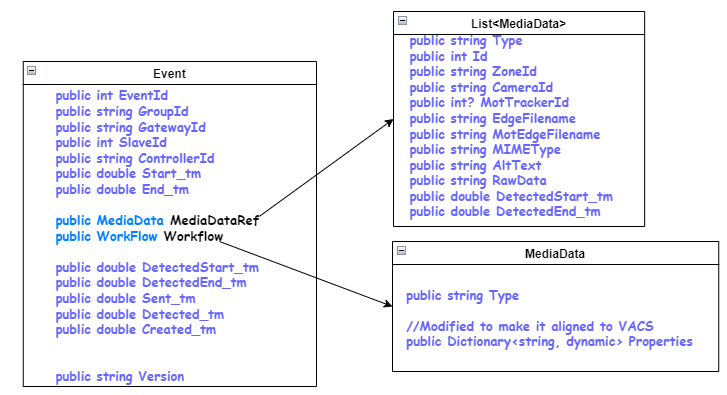
Eevents Schema should be used in context of messages that needs to be sent as an Alert or Events to Nimbus via Passthrough handler.
The class diagram for an EventMsg Schema is shown below.
 { .img-thumbnail }
BusMessageQueues
The BusMessageQueues is used for accessing the messages arriving via the BusClient. To use the Agora Edge Apps MQTT Broker, you should use BusClient as it provides methods that enable the core messages used by Agora Edge Apps.
Properties:
HasApplicationMessage: bool-Trueif Application Messages are available.HasDataInMessages: bool-Trueif DataIn Messages are available. RequiresAEA2:BusClient:UseDataIn = Truein the application configuration.HasRequestInMessages: bool-Trueif RequestIn Messages are available. RequiresAEA2:BusClient:UseRequestIn = Truein the application configuration.HasEventMessages: bool-Trueif Event Messages are available.
Methods:
GetApplicationInMessages(): IList<byte[]>- Returns a list of raw Application Messages.GetDataInMessages(): IList<IoDataReportMsg>- Returns a list of DataIn Messages waiting in the queue converted toIoDataReportMsg.GetRequestInMessages(): IList<RequestMsg>- Returns a list of Request Messages waiting in the queue converted toRequestMsg.GetEventMessages(): IList<EventMsg>- Returns a list of Event Messages waiting in the queue converted toEventMsg.
Utilities
Both .NET and Python SDKs provide a powerful utility library and tools that enable developers to simplify their development workflows and perform common tasks more efficiently.
Timestamps
AgoraTimeStamp and UTCDateTime are the two methods for consistent handling of timestamps. The AgoraTimeStamp is defined as the number of milliseconds since Jan. 1, 1970 (UTC) as a double . It is expected that all times used between applications use AgoraTimeStamps to avoid miscommunication.
Note
AgoraTimeStamp is not affected by timezone. When passing in a datetime object to AgoraTimeStamp it converts the time correctly to UTC time and delivers the correct corresponding timestamp. Additionally, the datetime returned by UTCDateTime is set to the UTC time zone.
For clarity, the for both AgoraTimeStamp and UTCDateTime are provided below:
public static class Time
{
    public static double AgoraTimeStamp(DateTime? tm = null)
    {
        if (tm == null)
            return (DateTime.UtcNow - DateTimeOffset.UnixEpoch).TotalMilliseconds;
        return (tm.Value.ToUniversalTime() - DateTimeOffset.UnixEpoch).TotalMilliseconds;
    }

    public static DateTime UTCDateTime(double tm) =>
        new(DateTimeOffset.UnixEpoch.Ticks + (long)(tm * 10000), DateTimeKind.Utc);
}
Misc. .NET Utilities
Agora.Utilities.Subject / Observable<T> / ObservableString
Subject, Observable<T>, and ObservableString are used to observe changes in variables across an application.
Observable<T> and ObservableString both derive from Subject which implement INotifyPropertyChange.
Subjects allow one to Invoke an OnChanged event without changing some underlying value.
Observable<T> and ObservableString will Invoke an OnChange event anytime the value they contain changes.
One must retrieve a Subject by name.
Examples
var mySubject = Subject.Get("MySubject");
var counter = Observable<int>.Get("Counter");
var realTimeValue = Observable<double>.Get("BPOS");
Since Subject inherits from INotifyPropertyChange one can subscribe to changes using the PropertyChanged event handler.
Examples
realTimeValue.PropertyChange += OnBPOSChange;
If the Observable value changes,
realTimeValue.Value = 123;
OnBPOSChange will be called.
Since Subjects do not have Values, a Subject event is invoked by just calling:
mySubject.OnChanged();
Containers
Both .NET and Python have a standard container technology called Docker. Docker provides a platform for developers to package their applications and all their dependencies into a single container, making it easy to deploy and run their applications consistently across different environments.
Building Docker Containers for .NET Applications
When you add the Nuget package to an application, it adds a file called Dockerfile.sample in the NugetContent folder.
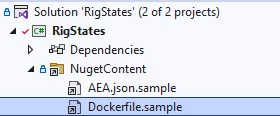
This sample provides a starting point to construct a Docker container image.
The Dockerfile uses alpine as the base image and then creates a build image on top of it. The build image is used to restore/build the project.
Redis Client
Redis Client is a NoSQL key-value cache that stores information in a hash table format. It provides the possibilities to store different type of structured data like strings, hashes, lists, sets, sorted sets, bitmaps and hyperloglogs.
With Edge SK 2.0 RedisClient functionality, developers can easily use Redis Server available on the gateway as a part of the Hermes Core Release.
Using Redis Client
Namespace: Agora.Edge
The RedisClient is implemented as a singleton. The purpose of the RedisClient is to store, retrieve values from Radis Server.
Example of AEA.json configuration file:
{
    "Name": "Sender",
    "AEA2": {
       "LogLevel": "Trace",
        "RedisClient": {
            "Server": "localhost",
            "Port": 6379,
        }
    }
}
Connect to the Redis Server
Use the following command to connect to the Redis Server.
using System.Text.Json;
using static Agora.SDK;

internal class Program
{
   private static void Main(string[] args)
    {
        "Starting".LogHeading();
        Redis.Connect(2000);
    }
}
Storing and Retrieving Value using Redis Client
Use the following command to store and retrieve value.
using System.Text.Json;
using static Agora.SDK;

internal class Program
{
   private static void Main(string[] args)
    {
        "Starting".LogHeading();
        Redis.Connect(2000);
        if (Redis.IsConnected)
        {
            //This one is used to store value
            Redis.Client.StringSet("key", "value");
            //This one is used to Get value
            var value = Redis.Client.StringGet("key");
            $"Value {value}".LogInfo();
        }
    }
}
Sample App
The following shows a sample that can be used as a starting point when creating a new edge app. It assumes that the SDK has been added to your application.
AEA.json:
{
    "Name": "SampleApp",
    "AEA2": {
        "LogLevel": "Info",
        "BusClient": {
            "Server": "localhost",
            "Port": 1883,
            "Subscriptions": ["DataIn", "RequestIn"]
        }
    }
    "AppSettings": {
        "Setting1": 1234
    }
}